
Smartphone Storage and Performance: What’s the Link?

Smartphone storage has a direct impact on how fast your device feels every day. When space starts to run out, you notice slower app launches, laggy typing, and delayed photos. The system needs free space to create temporary files, install updates, and save new content. If that space disappears, performance drops. Many people focus only on processor speed and RAM, but ignore how full storage quietly hurts the experience. By understanding what fills your phone and how to manage it, you can keep it responsive longer, avoid frustrating slowdowns, and delay the need to buy a new device.
Why Storage Affects Phone Speed?
How Low Storage Slows Daily Tasks?
When your phone’s storage drops close to full, simple actions start to feel heavy. Opening the camera takes longer. The keyboard may lag when you type. Switching between apps can stutter. This happens because the system constantly reads and writes data in the background. It needs free space to create temporary files, process updates, and cache content. With almost no room left, it must work harder to find space, which slows every step. Some phones also reduce performance to protect flash storage from excessive writes. The result is a phone that technically still works, but feels slow and frustrating.
Why Apps Need Free Space to Work Well?
Apps do much more than just sit installed on your phone. They download images, store settings, save offline content, and create logs. Games need space for new levels and patches. Social apps cache photos and videos to load faster. When storage runs low, apps struggle to save and update their data. You may see crashes, failed downloads, or error messages during updates. Large apps like video editors, navigation tools, and cloud storage clients especially rely on free space to process files. Without enough room, they cannot create temporary working files, so tasks like exporting videos or saving maps can stall or fail.
What Takes Up Smartphone Storage?
Photos, Videos, and Large Media Files
High-quality photos and videos are some of the biggest storage hogs on any smartphone. Modern cameras on devices such as the HONOR Magic V6 capture sharp images and 4K or even 8K video, which quickly consumes gigabytes. Screenshots, burst photos, and slow-motion clips add up silently. Downloaded movies, offline playlists, and podcasts also grow over time. Messaging apps save received media locally, so shared videos and memes build a hidden library. Many users almost never review this content, so years of media just sit there. Without regular cleanup or offloading to cloud or external storage, these files can easily take more space than apps or system data combined.
Apps, Cache, and Hidden System Data
Installed apps only show part of the storage story. Each app builds cache files to speed up loading. Over time, these caches can become huge, especially for browsers, social networks, and streaming platforms. System updates leave behind temporary files. Log files, thumbnails, and language packs may sit unused. Some apps store offline maps, downloaded playlists, or work files you forgot about. Messaging apps keep large databases of chat histories and attachments. The operating system also reserves space for updates and background processes. All this “invisible” data slowly fills storage, which is why a phone can feel full even when you think you installed only a few apps.
How to Keep Storage and Speed Balanced?
Clean Unused Files Before Problems Start
The best time to manage storage is before you see warnings. Set a monthly reminder to review large files and unused apps. Delete old videos, duplicate photos, and long voice messages you no longer need. Uninstall apps you have not opened in months, especially games and editors. Use your phone’s built‑in storage tool to spot apps and files taking up the most space. Clear app cache for heavy users like browsers and social apps when they grow too large. Regular light cleaning keeps plenty of free space available, so your phone can update smoothly, open apps quickly, and avoid emergency “storage almost full” alerts.
Use Cloud Tools and Backups Wisely
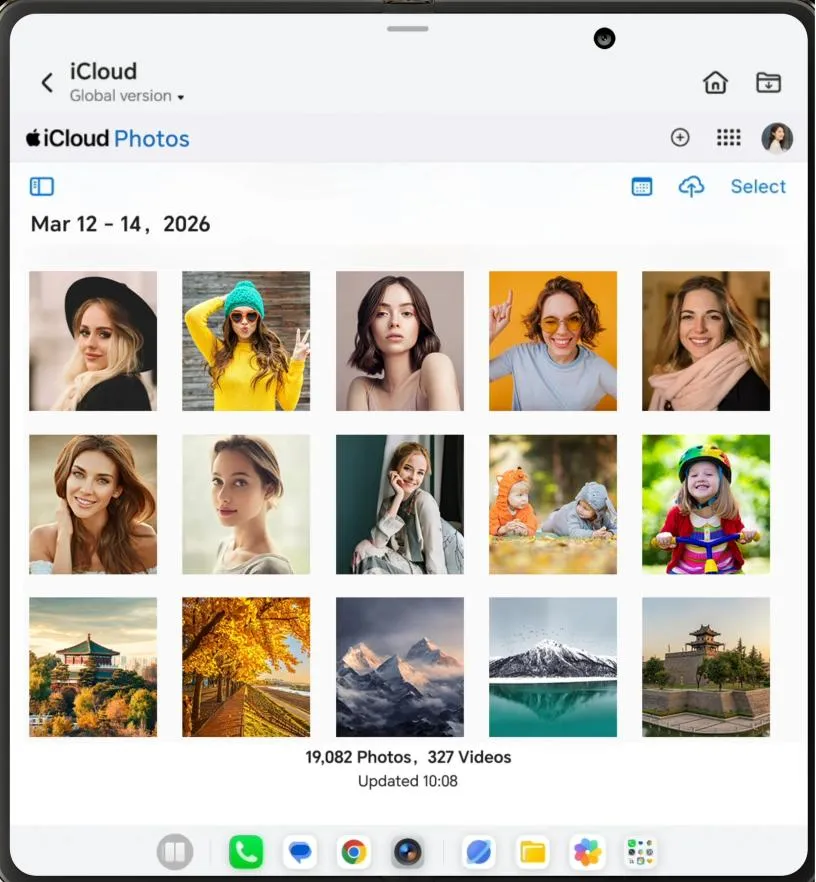
Cloud storage helps free local space without losing important content. Turn on automatic photo backup to services like Google Photos, iCloud, or similar tools, then remove local copies of older media. Store large documents and work files in cloud drives instead of keeping many versions on the phone. Use streaming for music and video instead of downloading everything offline, unless you truly need it. Still, do not rely only on the cloud. Keep at least one full backup on a computer or external drive. Balance convenience, privacy, and data usage when syncing, and regularly check that backups complete successfully so you can safely delete local files.
Conclusion
Smartphone performance depends on more than just the processor and RAM. Storage health and free space play a major role in how your device feels each day. When space gets tight, apps slow, updates fail, and even simple actions start to lag. By understanding what fills your phone, cleaning unused files regularly, and using cloud tools carefully, you keep both storage and speed in balance. This routine extends your phone’s useful life, reduces stress, and helps you avoid rushed upgrades. A bit of steady storage management turns your existing smartphone into a smoother, more reliable daily tool.