
Why Your Business Price Disappeared: Repricing Settings That Trigger B2B Offer Suppression
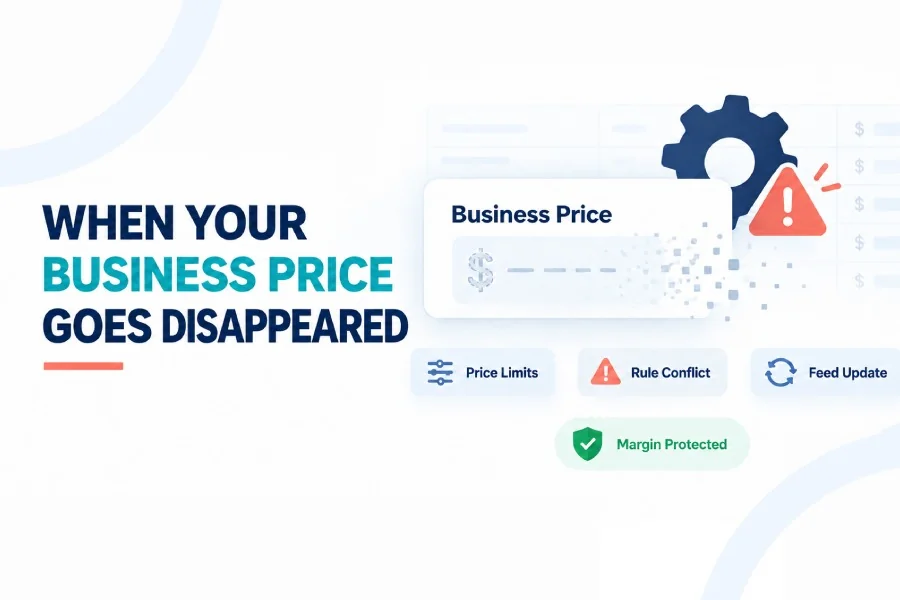
You open an Amazon Business listing and notice that the business price or quantity discount is no longer visible. The standard consumer offer is still active, inventory is available and the product page appears normal.
It is easy to assume that Amazon removed the price without warning. In many cases, however, the problem begins with a conflict between your standard price, business price, quantity tiers or repricing limits.
A repricing rule may have moved one price while leaving another unchanged. Your business price may no longer meet Amazon’s pricing requirements, a quantity discount may create an invalid price relationship or a feed update may have replaced an existing value.
To restore the offer, you first need to find out which setting created the conflict.
What Does B2B Offer Suppression Mean?
B2B offer suppression can describe different situations. Your business offer may still exist in Seller Central but not appear as expected to an Amazon Business customer. In other cases, the business price or one of its quantity tiers may have been rejected, deactivated or overwritten.
You may notice:
- The business price is missing from the detail page.
- Quantity discounts no longer appear.
- A particular quantity tier is unavailable.
- The offer is visible but not eligible for the B2B Featured Offer.
- Seller Central shows a pricing or feed error.
- The standard offer remains active while the business offer disappears.
These symptoms do not always have the same cause. Before changing prices, confirm exactly which part of the offer is missing.
Check the Relationship Between Your Prices
Your SKU may contain several connected price points:
- Standard consumer price
- Sale price
- Business price
- Quantity-tier prices
- Minimum repricing limit
- Maximum repricing limit
These values cannot be managed independently without considering how they affect one another.
For example, your business price may initially be lower than the standard price. If a consumer repricing rule later reduces the standard price below it, the business offer may no longer provide the intended business saving.
A similar conflict can happen within quantity tiers. A higher-volume tier should normally create a better per-unit price than the tier before it. If a feed or rule produces an inconsistent structure, one or more discounts may fail to display correctly.
Review the complete price ladder rather than checking only the missing price.
Look for Minimum and Maximum Price Conflicts
Minimum and maximum limits protect your margin, but incorrect limits can also block a repricing action.
Suppose your rule calculates a business price of $18.50, but the minimum price for the SKU is set at $19. The repricer may refuse to apply the calculated price or stop updating the offer.
The opposite problem can also occur. If the minimum is set too low, a rule may produce an aggressive business price that creates an unexpected pricing alert.
Check whether:
- The minimum price is below the intended business price.
- Every quantity tier stays above the SKU’s profit floor.
- The maximum price allows normal competitive movement.
- Limits use the correct currency.
- Limits were calculated using current fees and costs.
- The rule has a safe action when no valid price is available.
Do not widen your limits immediately. First calculate the lowest price that remains commercially acceptable.
Confirm That the Rule Targets the Correct Price
A common configuration problem is assigning a rule to the wrong price type.
A rule intended for the standard consumer offer may accidentally affect the business price. A B2B rule may be inactive, assigned to the wrong marketplace or connected to only part of the catalogue.
Review the rule assignment and confirm:
- The correct SKU is included.
- The correct marketplace is selected.
- The rule is active.
- The rule updates the intended price field.
- The business price has not been excluded.
- Quantity tiers are included where required.
- Another rule is not updating the same SKU.
Two systems should not compete to control the same price. If Amazon’s automated pricing tool, a third-party repricer and a bulk upload all update the SKU, the most recent submission may replace an earlier value.
Check Whether the Business Price Was Overwritten
A business price can disappear after a catalogue file, API update or repricing feed is submitted.
This often happens when a new upload contains blank business-price fields or does not preserve the existing tier structure. The seller may intend to update inventory or the standard price, but the submission can affect additional fields.
Compare the timing of the problem with recent activity:
| Recent Activity | What to Check |
| Repricing rule change | Rule scope, limits and targeted price type |
| Inventory upload | Whether business-pricing fields were preserved |
| Bulk price update | Blank or incorrect business-price values |
| API integration change | Field mapping and submission errors |
| Marketplace expansion | Currency and marketplace-specific settings |
| Promotional price | Start date, end date and price relationships |
If the business offer disappeared immediately after one of these actions, start your investigation there.
Review Scheduled and Promotional Prices
Temporary prices create another layer of complexity.
A sale price may begin or end while a business price remains unchanged. This can change the relationship between the consumer and business offers. Scheduled business pricing can also disappear when its end date passes.
Check:
- Promotion start and end dates
- Scheduled business-price dates
- Time-zone differences
- Expired discounts
- Consumer sale prices
- Future pricing updates
If the offer disappeared at a specific time, the timing may point directly to an expired schedule rather than a repricing failure.
Examine Pricing Alerts and Feed Errors
When Amazon rejects or deactivates a price, Seller Central may provide an alert, error code or account notification.
Amazon explains that its Marketplace Fair Pricing Policy considers pricing practices that may harm customer trust. Pricing problems should therefore be reviewed carefully instead of repeatedly submitting the same value.
Look for notices related to:
- Potential pricing errors
- Uncompetitive prices
- Invalid price relationships
- Incomplete submissions
- Currency errors
- Missing required values
- Automated-pricing limits
Record the error message before editing the SKU. It can help you identify whether the issue comes from Amazon’s validation process or your own repricing configuration.
Make Sure Inventory Supports the Business Quantity
Sometimes the price is correct, but the buyer cannot access the offer at the required quantity.
If your highest quantity tier begins at 25 units but only 12 units are available, the offer cannot support that purchase. This may look like a pricing issue when the real problem is inventory.
Check whether:
- Enough units are available for the tier.
- Inventory is reserved for pending orders.
- FBA and merchant-fulfilled quantities are reported correctly.
- The full business order can be delivered.
- Restocking delays have reduced available stock.
Lowering the price will not fix a quantity tier that your available inventory cannot fulfil.
Audit the Settings in the Right Order
Changing several settings at once makes it difficult to identify the original cause. Use a simple sequence:
- Confirm the SKU is active and has available inventory.
- Check whether the standard offer is visible.
- Verify the business price in Seller Central.
- Review each quantity threshold and effective unit price.
- Compare every price with its minimum and maximum limit.
- Check rule assignments and recent feed submissions.
- Review scheduled prices, alerts and error messages.
- Correct one issue and confirm the result before making another change.
This approach creates a clear record of what changed and whether that change restored the offer.
Prevent the Same Problem From Returning
Once the offer is restored, document the reason it disappeared. That information should become part of your repricing rules and regular account checks.
Useful safeguards include:
- Separate limits for consumer and business pricing
- A valid price relationship across all quantity tiers
- Alerts when a rule cannot calculate an approved price
- A record of every manual and automated update
- Regular checks for overwritten business-price fields
- Inventory rules for large quantity tiers
- Testing before assigning a rule across the catalogue
Reliable Amazon B2B Repricing depends on more than responding to competitors. It also requires controls that prevent one price update from breaking another part of the offer.
Keep Your Business Offer Visible and Profitable
A missing business price is not always caused by one obvious setting. It may result from a limit conflict, an invalid tier relationship, an expired schedule, insufficient inventory or another system overwriting the value.
The correct response is to inspect the full pricing structure before lowering the price or rebuilding the offer.
Effective Amazon B2B Repricing should maintain the connection between your standard price, business price, quantity discounts and profit floor. When those elements work together, your business offer is more likely to remain active, competitive and commercially worthwhile.