
Audio to Text for Work and Study: How Transcripts Save Knowledge Workers Hours Every Week
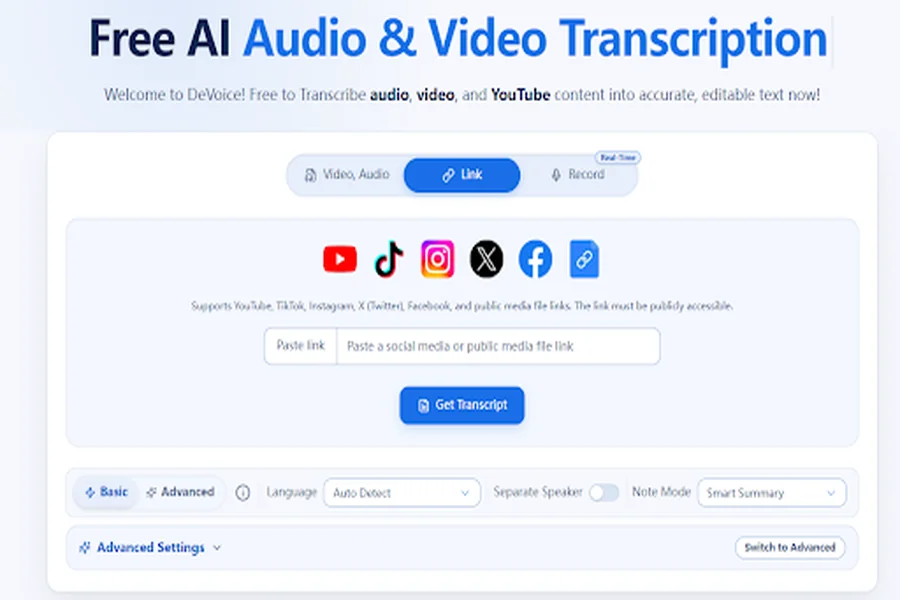
Think about how much of your working week is spoken: team meetings, client calls, lectures, interviews, brainstorming sessions, and voice memos. Now think about how little of it you can actually find again a week later. Converting audio to text turns all of that ephemeral speech into a durable, searchable record — and the devoice audio to text tool does it in minutes, directly in your browser, so decisions, quotes, and insights never evaporate after the call ends.
Why Spoken Information Keeps Getting Lost
Speech is fast and linear. You hear it once, in order, and then it’s gone. Unless someone captures it, the most valuable parts of a conversation — a client’s exact requirement, a professor’s exam hint, a stakeholder’s offhand commitment — survive only in the imperfect memory of whoever was listening.
The standard workaround is taking notes by hand, but live note-taking creates a brutal trade-off. The moment you look down to write, you stop listening. You end up with either a partial set of notes and a fuzzy memory of the discussion, or full attention and almost nothing written down. Even fast typists can’t capture word-for-word speech while also thinking critically about what it means.
Recording the session solves the capture problem but creates a retrieval problem: an hour-long audio file is not searchable. Finding one sentence means scrubbing through sixty minutes, and quoting it accurately means retyping by ear. The information is technically there, but it’s locked in a format your brain and your tools can’t easily use.
What Good Audio-to-Text Transcription Gives You
A transcript converts speech from something you have to listen to sequentially into something you can scan, search, and repurpose. That single change unlocks a surprising amount of productivity:
- Searchable records. Press Ctrl+F to jump straight to the mention of a project, a name, or a number instead of rewinding audio.
- Accurate quotes. Cite exactly what a client, expert, or interviewee said — no paraphrasing and no misremembering.
- Speaker attribution. Automatic speaker labels make it clear who said what in meetings and interviews.
- Timestamps. Word-level timestamps link every line back to the moment it was spoken, so you can verify context in one click.
- Reusable text. Copy decisions into task trackers, quotes into reports, and passages into summaries without retyping.
Where It Pays Off: Meetings, Lectures, Interviews, and Research
Work meetings: Capture every decision and action item, then distribute a reliable record instead of relying on who “took notes.”
Lectures & classes: Study from a complete, searchable text and review complex sections at your own pace rather than replaying video.
Interviews & journalism: Pull verbatim quotes with speaker labels and timestamps, safe for publication and fact-checking.
Client & sales calls: Keep a precise record of requirements, objections, and commitments for follow-up and handoffs.
Research & qualitative studies: Turn hours of interviews into analyzable text that can be coded, compared, and quoted.
Voice notes & brainstorms: Turn rough spoken ideas into organized written drafts you can actually build on.
How the devoice Audio to Text Tool Works
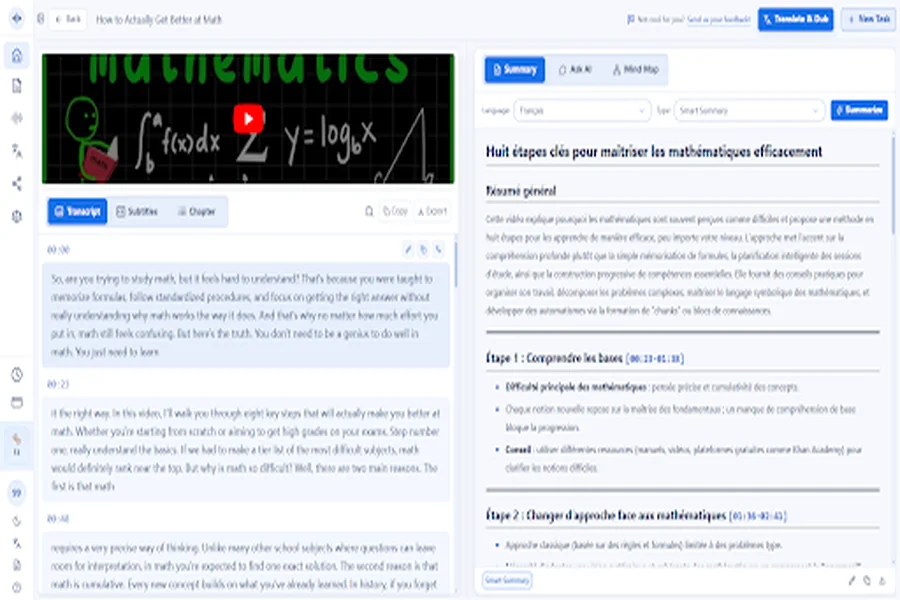
The devoice audio to text workflow is built to fit the way busy people actually collect recordings, not a rigid transcription pipeline. You can upload an audio or video file directly, or paste a link — for example, a recorded meeting or an online video — and the tool processes up to five tasks at the same time, so a batch of lectures or interviews doesn’t queue one behind another.
Before processing, you choose the options that fit the material: enable speaker recognition to label who said what, pick the transcription language (the system auto-detects over 100 languages), and choose the type of AI summary you want. Once the text is ready, you can go beyond a raw transcript:
- Translate the transcript into another language for international teams or sources.
- Generate an AI summary that surfaces the core points and decisions instead of the whole hour.
- Chat with the transcript — ask questions and get answers drawn from the recording itself.
- Build a mind map of the structure of a lecture or brainstorm.
- Export in TXT, DOCX, SRT, VTT, or CSV for notes, subtitles, or spreadsheets.
It all runs in the browser with no software to install, which means you can process a call on whatever device you’re using and move straight into editing.
A Simple Workflow to Turn Any Recording into Usable Notes
- Upload or link. Drop in the audio or video file, or paste the URL of the recorded session, and queue up to five at once.
- Set your options. Turn on speaker labels, confirm the language, and choose whether you want an AI summary, translation, or both.
- Review the transcript. Scan the word-level text, jump to any moment with timestamps, and correct names or terms in seconds.
- Summarize and extract. Use the AI summary and transcript chat to pull decisions, action items, and quotable lines.
- Export and share. Download DOCX or TXT for notes, SRT or VTT for captions, or CSV for structured analysis.
What This Changes in a Normal Week
Consider a professional who sits through five one-hour meetings and calls a week. Relying on live notes, that person loses focus during each session and then spends extra time afterward reconstructing what was decided. With a transcript, the recording captures the complete conversation, so they can actually listen in the room and spend just a few minutes afterward extracting action items.
Multiply that across a team or a semester of lectures and the savings compound: fewer “what did we agree on?” messages, fewer forgotten commitments, and a growing body of searchable, quotable records. Students get study material they can search; researchers get interview text they can analyze; journalists get accurate quotes; teams get a shared, defensible source of truth. The recording was already happening — transcription simply makes it useful.
Frequently Asked Questions
What does converting audio to text actually mean?
It means using speech recognition to turn a recording of speech — a meeting, lecture, interview, or voice memo — into a written document you can read, search, edit, quote, and export, complete with timestamps and sometimes speaker labels.
Is transcribing a meeting better than taking notes live?
For most people, yes. Live note-taking forces you to choose between listening and writing, so you miss nuance. A full transcript captures everything, after which you highlight only the decisions and action items that matter.
Can it tell who is speaking?
Yes. DeVoice supports speaker diarization with automatic speaker labels and word-level timestamps, which is especially useful for interviews, panels, and multi-person meetings.
What languages and export formats are supported?
The tool auto-detects more than 100 languages and exports transcripts as TXT, SRT, VTT, DOCX, or CSV, so you can move text into docs, notes apps, or subtitle workflows.
Do I need to install anything?
No. It runs in the browser with no software installation. You can upload a file or paste a link, and process up to five tasks at the same time.
Stop Letting Important Words Disappear
Turn your next meeting, lecture, or interview into a searchable, quotable transcript with AI summary and translation — free to start, right in your browser.