
AI Photo Editing Must Preserve Garment Construction

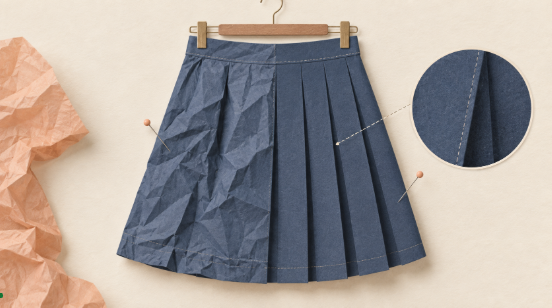
Lay a pleated skirt beside a shirt fresh from a parcel and the word “wrinkle” becomes unhelpful. Both fabrics contain folds, but only some should disappear. The skirt’s pleats define the design; the shirt’s packing creases may be temporary. A retouching brief that treats them alike can change the garment before anybody notices the fabric looks smoother.
The useful comparison for an AI Photo Editor is between three outcomes: leave the photograph alone, soften a few temporary creases, or regenerate a broadly smoother surface. The third option needs the strongest justification because the result may describe a different cut or material.
Identify Which Folds Belong To The Design
Begin with the garment, its construction and the purpose of the image. An editorial photograph may explore mood, while a shop image helps someone judge what they will receive. In either case, darts, seams, permanent pleats and gathered areas explain how the piece is made. Mark them on a reference copy before retouching.
A temporary crease often crosses the intended drape rather than following it, but that observation is not enough on its own. Check another photograph or the garment itself. A faint line may be a seam, and a sharp fold may be intentional. The person who styled or photographed the piece can resolve ambiguities that a remote editor cannot see.
PicEditor AI offers instruction-based edits to an uploaded image. Give the instruction a specific target, such as one diagonal packing crease below a pocket. Keep the pocket edge, seam and surrounding drape unchanged in the brief. Then inspect those details in the result; the request establishes the intended edit, not a guarantee.
An AI Photo Editor is a poor substitute for steaming and reshooting when the entire garment was photographed badly. A new photograph can preserve real fabric behavior while removing many temporary creases at once. Compare that practical option with the time needed to review several generated candidates.
Compare Three Levels Of Surface Cleanup
Prepare the untouched source, a narrowly edited version and a more aggressive candidate if there is a reason to consider one. Use the same crop and display size. Judge the changes against the garment’s construction, not against the smoothest picture in the set.
| Version | Potential benefit | Reason to reject |
| Original photograph | Preserves photographed fabric | Temporary creases obscure the cut |
| Localized cleanup | Clarifies a specific area | A seam or drape changes nearby |
| Broad smoothing | Creates a more even surface | Material loses texture or structure |
The original remains a valid choice. Slight creasing may tell shoppers more about linen or lightweight cotton than a perfectly flat surface. A cleaner candidate earns its place only when it improves visibility without changing what the fabric appears able to do.
Watch The Hem And Pocket Edges Closely
These edges provide landmarks for comparison. If smoothing lifts a hem, narrows a pocket or moves a button, the edit has crossed from surface treatment into design. Use an overlay to see those shifts, and compare both sides of the garment rather than assuming a symmetrical result is correct.
In PicEditor AI, keep the source image and request consistent while trying a smaller change. If each attempt reinterprets the same seam, stop that route. A small manual correction or an unretouched photograph may be more dependable for the intended use.
Overlay The Edited Garment On The Original
Align the two images by a fixed detail such as the collar or waistband in a conventional editor. Reduce the top layer’s opacity. Construction lines should coincide; double edges reveal movement. Do not align on a region that the generated candidate has already distorted.
For an AI photo editing comparison, inspect one problem crease from end to end. Where does it cross a seam? Does it pass into shadow? What texture should remain underneath? A convincing surface patch can still erase the fine weave that identifies the material.
AI photo editing also changes the reading of shine. A matte fabric made glossy may suggest satin; flattened highlights can make a coated material look like ordinary cloth. Check a neutral reference photograph if lighting was part of the edit, and keep the original color treatment available for the person approving the product image.
Look at stress folds around elbows, knees and fastenings. They show how the piece fits the pose. Removing them may imply a looser size or more flexible material. If the photograph illustrates fit, those folds are useful information even when they interrupt a clean silhouette.
A second garment view can reveal an inconsistency the overlay misses. The front may look unnaturally smooth while the side still shows substantial gathering. Review the image set as a customer would see it, with all views representing the same garment and styling state.
Use A Fold That Crosses Two Surfaces
A crease crossing from a patterned panel into a plain panel makes a useful review case. Inspect whether the pattern continues across the edited area, whether its scale remains constant and whether the boundary between panels stays in place. A smooth result that bends the pattern has traded one visible distraction for a less obvious construction error.
For translucent or textured material, keep the background and weave visible through the corrected fold. Broad smoothing can create an opaque patch. Review that area against both a light and dark surrounding layout, because a mismatch may disappear on the editing canvas and become obvious on the published page.
Record the rejected candidate and the reason it failed. “Pocket moved toward seam” gives the next retoucher a specific boundary. “Looks artificial” offers little guidance and may send them back to another broad smoothing request.
Approve Fabric And Fit Before Exporting Selects
Ask the stylist or product owner to compare the candidate with the physical item. Give them the specific edited area, then ask whether the material, construction or fit now appears different. A general request for approval can draw attention to color and composition while missing the consequential change.
Review the image at delivery size after the detailed comparison. A tiny crease that bothered the retoucher at extreme zoom may never be visible in the final layout. Leave it alone if further treatment would put a seam or fabric edge at risk. The purpose is a useful photograph, not a perfectly uniform collection of pixels.
PicEditor AI can be part of a restrained clothing-image workflow when the source is sound and the requested change is local. Keep the unedited file and note which crease was treated. That record helps another editor distinguish an intentional construction line from a defect when the image is reused.
Choose the version that still explains the garment. A pleat should remain a pleat, a stress fold should still show the pose, and the fabric should retain the texture that gives it character. If the smoother image makes any of those harder to judge, the source photograph is the stronger select.