
How to Transfer Playlists Between Streaming Services Without Starting Over
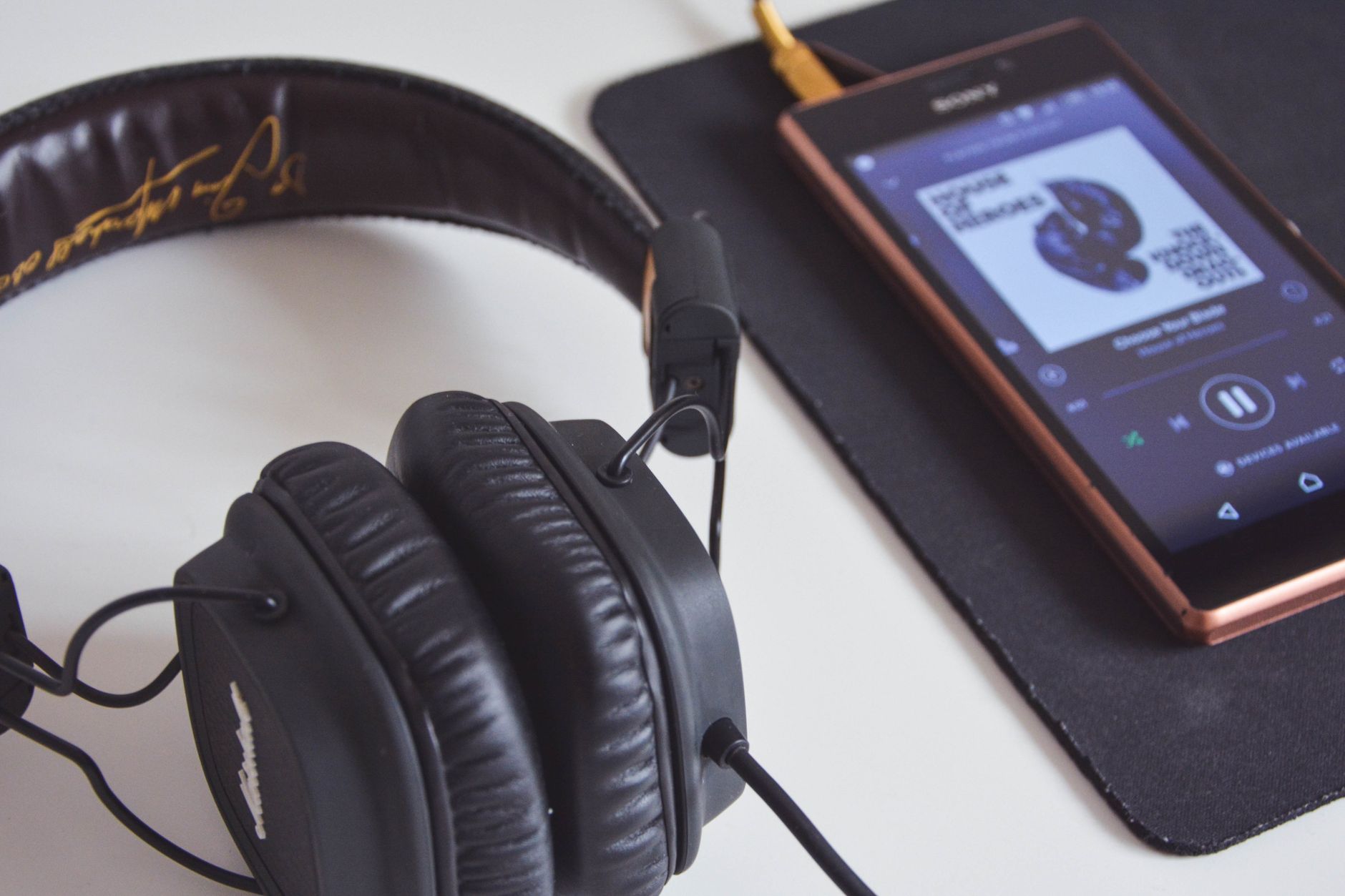
There is a particular kind of digital frustration that comes from being locked into a platform you have outgrown. You built your music library on one streaming service, spent years organizing it, and now you want to move, but everything you care about is tied to the account you want to leave. The playlists, the liked songs, the albums, the order you arranged everything in: it all feels like it would be lost in the transition.
This is the lock-in that music streaming services rely on, and it is largely a myth. The technical barrier to moving a music library between platforms was solved years ago. The tools that do it are fast, reliable, and do not require any technical knowledge. What takes weeks to do manually takes minutes with the right service.
Why Transferring Playlists Has Historically Felt Impossible
The difficulty of switching streaming services is not accidental. Platforms benefit significantly from the perception that your library is permanently anchored to their service. Users who believe they cannot leave without losing everything are users who stay even when they would prefer to go. The lock-in costs nothing to maintain and generates enormous passive retention.
The actual technical picture is different. Streaming services open their data through APIs, and third-party tools can use those APIs to read your library from one platform and recreate it on another. The music itself does not move, of course: the streaming files remain with each respective service. What transfers is the library data, the list of songs in each playlist, the names, the order, the liked songs, and the saved albums. On the destination platform, the tool matches that data to the available catalogue and rebuilds your library.
When you transfer playlists using FreeYourMusic, this process runs automatically with over 12 million users having relied on it to make the switch. The app is available on iOS, Android, macOS, Windows, and Linux, and supports all major streaming platforms.
Platforms Supported
The transfer capability covers the full range of major streaming services: Spotify, Apple Music, YouTube Music, Tidal, Amazon Music, SoundCloud, Deezer, Qobuz, and more. Transfers work in both directions, so you can move from Spotify to Apple Music, from Apple Music to YouTube Music, from Tidal to Spotify, or any other pairing among the supported platforms.
This bidirectionality is what makes it possible to treat a platform change as reversible. If you move your library to a new service and decide after a month that you prefer your original platform, you can move back. There is no permanent commitment involved in switching.
What a Transfer Includes and What It Does Not
A full library transfer includes named playlists with their complete song lists and original song order, liked or favorited songs, and saved albums. The structure you built on the original platform is preserved as closely as the destination platform's format allows.
What may not transfer perfectly is any track that exists on the source platform but is not licensed to the destination service. Licensing agreements vary between streaming providers, and a small number of tracks, particularly from independent artists or exclusive releases, may be available on one platform but not another. When this happens, FreeYourMusic identifies the specific tracks that could not be matched rather than silently omitting them, so you know exactly what needs to be addressed.
After the transfer, your library on the new platform will reflect your existing organization. The discovery features, recommendations, and new content from the new service will build on top of that foundation rather than replacing it.
Running a Transfer: What to Expect
The process from starting the app to completed transfer is straightforward. You authorize FreeYourMusic to access both accounts through the official login flows of each streaming service. You select what you want to transfer, whether that is everything or specific playlists. You confirm the transfer and let it run.
For most users, the transfer completes in a few minutes. A very large library with hundreds of playlists and tens of thousands of songs may take longer, but the process runs in the background and does not require you to stay in the app.
After completion, you receive a summary of what transferred and what, if anything, could not be matched. The unmatched tracks are a small minority for most users and can be handled individually at whatever pace you prefer.
Keeping Libraries in Sync Across Multiple Platforms
For users who want to maintain accounts on more than one streaming service simultaneously, FreeYourMusic's auto-sync feature keeps library data current across platforms on an ongoing schedule. Syncs run as frequently as every 15 minutes, ensuring that new additions to your library on one service are reflected on the other without any manual effort.
This is particularly useful for households where different family members prefer different platforms, or for users who listen through different services on different devices but want their playlists to be consistent regardless of which one they pick up.
Frequently Asked Questions
Does transferring playlists delete them from the original platform?
No. A transfer creates copies of your playlists and library on the new platform. The originals on your source service remain intact until you choose to remove them.
What if a streaming service is not listed in the supported platforms?
FreeYourMusic regularly adds new platform support. The current supported list covers all major services. For niche platforms not yet included, checking the app directly for the most current coverage is recommended.
Is there a limit on how many playlists I can transfer?
The free version includes a limited transfer size. The premium subscription supports unlimited transfers with no cap on the number of playlists or songs.
How accurate is the track matching on the destination platform?
Matching uses song title, artist name, and metadata to find the correct track. For most popular music, matching accuracy is very high. Tracks with inconsistent metadata or unusual naming conventions may require manual correction.
Can I schedule transfers to run automatically without initiating them manually?
Yes, through the auto-sync feature. Once configured, syncing between connected accounts runs on the schedule you set without requiring any manual action.