
Beyond the Gimmick: Integrating Face Swapper into Professional Design Workflows
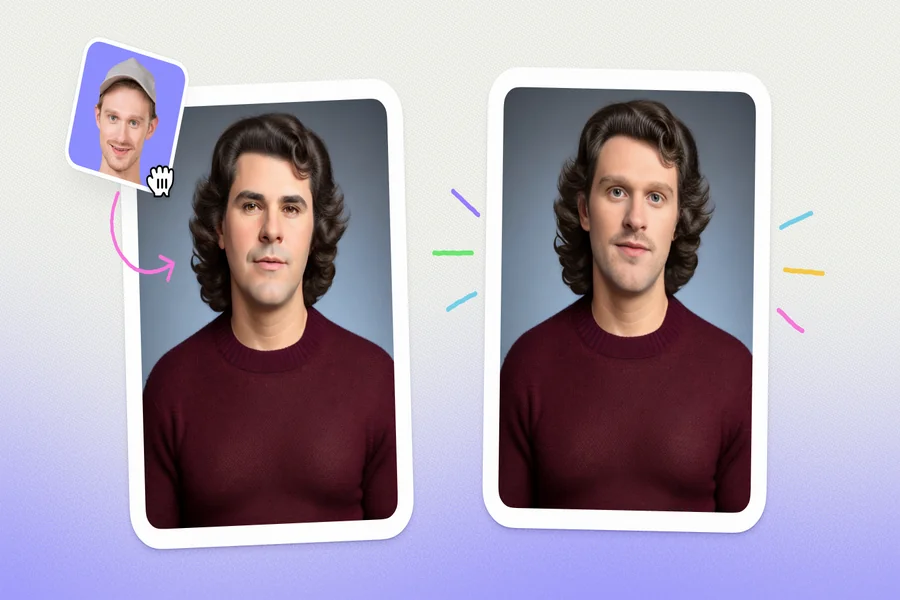
AI face manipulation used to live in two distinct spheres: the high-technical world of visual effects and the chaotic, low-quality realm of mobile meme apps. You either spent hours in Photoshop matching skin tones and warping features, or you accepted a blurry, obvious fake for a quick laugh.
Face Swapper by Icons8 bridges that gap. It positions itself not as a social media toy, but as a utility for designers, marketers, and content managers. These professionals need to manipulate imagery without the steep learning curve of manual compositing. The central question isn’t about the tech novelty. It is about application: How do we use this responsibly in real workflows without crossing ethical lines or sacrificing image quality?
Understanding the “In-Between” Mechanism
Stop thinking of this as a cut-and-paste tool. Unlike basic texture overlays, Face Swapper generates a new face that exists mathematically “in between” the source and the target.
The AI analyzes facial features from both images. It synthesizes a result resembling both while locking in the lighting, angle, and expression of the original base photo. That preservation is crucial for professional use. Direct copy-pastes look uncanny because source facial structures rarely match target head shapes. By generating a hybrid, the tool maintains the structural integrity of the original image while swapping the identity.
Scenario 1: The Corporate Stock Photo Adjustment
Finding the perfect stock photo is a frequent headache. You find a group shot with perfect lighting and composition for a slide deck, but the central figure doesn’t match the demographic you need. Or perhaps their expression reads as too aggressive for the brand voice.
Manual workflows make this a dead end. You scrap the photo and keep searching.
Face Swapper salvages these “almost perfect” assets. A designer can take that corporate group shot (the target) and swap in a friendly, neutral face from the built-in Moose photo library. Since the tool handles high-resolution output up to 1024px, the resulting image holds up for web use and digital presentations. You aren’t deceiving the viewer into thinking a specific person works there. You are curating the “vibe” of the marketing material to better fit the narrative.
Scenario 2: Identity Protection and Anonymity
Privacy offers a less obvious but highly valuable use case. Journalists, NGO workers, and case study writers often publish photos of subjects requiring anonymity. Traditional methods like pixelation or black bars dehumanize the subject. They ruin the visual impact.
Face Swapper provides a solution described in the documentation: making an online identity less recognizable. By combining the subject’s photo with a generated appearance, you retain the human element-the eyes, the smile, the posture-while effectively scrubbing the biometric data linking the photo to a specific individual.
This creates a “synthetic lookalike.” The person looks real. The emotion remains. But the face does not belong to the actual subject. This allows for storytelling that respects privacy without sacrificing empathy.
A Narrative Walkthrough: Fixing the Company Newsletter
Picture a typical Tuesday afternoon for a Communications Lead at a mid-sized tech firm. The task is simple: publish the monthly newsletter featuring the engineering team’s recent hackathon win.
The photos arrive, and the best group shot has a major flaw. The lead engineer, standing right in the center, blinked. Every other shot suffers from bad lighting or messy composition.
Step 1: Asset Selection
Open Face Swapper in the browser. No software installation is needed, a massive plus for corporate laptops with restricted permissions. Drag the flawed group photo (the target) into the upload zone.
Step 2: Source Selection
Dig through the folder for a source face. Find a different photo of the same engineer from earlier in the day where their eyes are open and they are smiling. Upload this as the source.
Step 3: The Swap
The interface detects multiple faces in the group photo. This is the “Multiswap” feature. Select only the blinking engineer to be replaced. Leave the rest of the team untouched.
Step 4: Processing and Upscaling
Processing takes a few moments. The blink vanishes. The new face adopts the correct lighting from the room. Because the output is 1024px, it’s sharp enough for the email newsletter. For a printed banner, use the integrated face swap ai link to push the result through the Smart Upscaler to boost the resolution.
Step 5: Privacy Check
Download the file. Clear the history. While documentation notes that images are stored securely and deleted permanently after two months, best practice in a corporate environment demands manually clearing sensitive internal photos immediately after processing.
Limitations and When to Avoid
Marketing copy often claims tools can handle anything. The technical documentation offers a more grounded reality. Current AI swappers struggle in specific conditions.
Obstructed Faces
Hands near faces, microphones, or heavy hair falling across eyes confuse the AI. It often attempts to “paint” the new face over the obstruction, resulting in a hand that melts into a cheekbone. Stick to manual Photoshop work for significant obstructions.
Profile Views
Front-facing to side portraits work best. The tool struggles with 3/4 head positions or extreme angles. The geometry of a profile swap is incredibly complex, and the “in-between” generation often fails to align the jawline correctly in these instances.
File Constraints
A 5 MB file size limit and 1024×1024 face size limit mean this is not a tool for high-end print advertising like billboards. It is squarely aimed at digital content.
Comparing the Alternatives
Face Swapper vs. Manual Compositing (Photoshop)
Manual compositing gives you 100% control. You can mask out hair strands, adjust specific shadows, and work at any resolution. But it takes time and skill. Face Swapper is an 80% solution that takes ten seconds. Use Photoshop for high-stakes hero imagery. Use AI for blog posts, newsletters, and social content.
Face Swapper vs. Mobile Apps (Reface, FaceApp)
Mobile apps focus on entertainment. They often aggressively downsample images, apply heavy watermarks, or exaggerate features for comedic effect. Face Swapper aims for realism and preserves the original file dimensions (up to its limit). It serves as a production tool rather than a toy.
Practical Tips for Better Results
The “Skin Beautifier” Hack
Here is a clever undocumented use: skin retouching. Upload the same photo as both the source and the target. The AI runs its generation process, synthesizing the features. It often inadvertently smooths out skin texture and minor blemishes while keeping the identity exactly the same. It acts like a smart filter for skin tone.
Match the Head Shape
Since the tool generates a hybrid face, results improve significantly when the source and target share similar head shapes. Swapping a round face onto a long, narrow skull often results in unnatural distortion around the jawline.
Batch Processing
Large projects benefit from batch processing. No upload limits exist here, though performance may dip with massive batches. For huge libraries, the documentation suggests looking into the API subscription rather than the browser interface.
The Verdict
Face Swapper is a utilitarian implementation of generative AI. It strips away the “magic” branding often associated with these tools and presents a functional interface for changing identities. It won’t replace a professional retoucher for high-end work due to resolution limits and obstruction issues. But for the daily grind of digital content creation-correcting stock photos, anonymizing subjects, and fixing group shots-it offers a workflow faster than Photoshop and more professional than a mobile app.